

This is the same
gooseworks MCP server documented in MCP Servers and Ad Remixer MCP. ChatGPT work connects with a token header: Authorization: Bearer cal_.... Same tools, same account.Before you start
- Custom MCP servers are added under Settings → Plugins → MCPs.
- You’ll need a user-scoped GooseWorks MCP token with the
mcp:accessscope. The first step below shows exactly where to create it.
Connect
1
Create your GooseWorks MCP access token
Open Settings → CLI & MCP, expand Manual setup, and click Create MCP access token. This creates a user-scoped token with the
mcp:access scope.Copy the cal_… value immediately; it is shown only once. You will paste it into your client’s authorization header in the next step.2
Open the custom MCP form
In ChatGPT, open Settings → Plugins, select the MCPs tab, and click + Add server. Fill in the Connect to a custom MCP form:Leave Bearer token env var empty.Under Headers, add: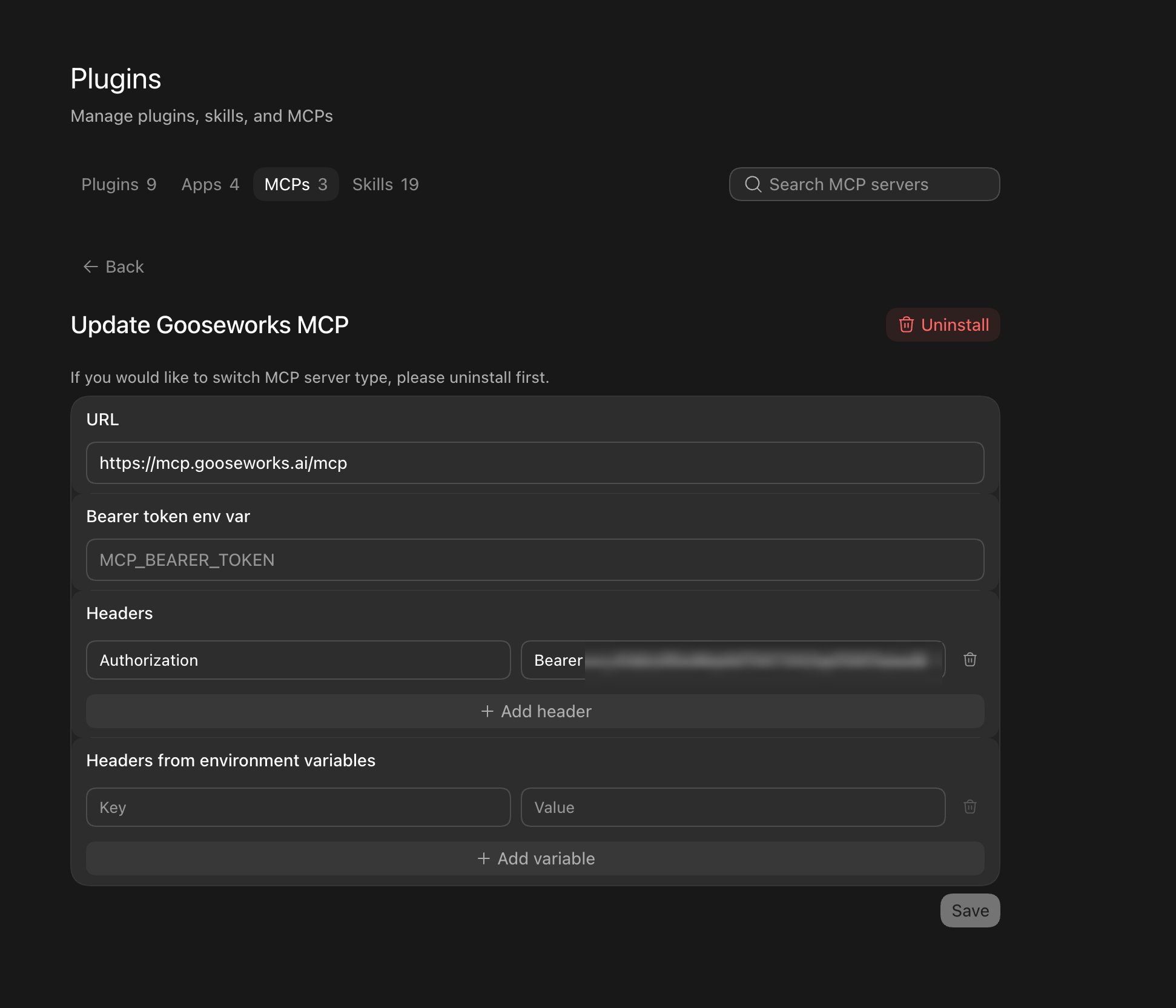
- Name:
Gooseworks - Type: Streamable HTTP
- URL:
- Key:
Authorization - Value:
Bearer cal_your_token_here
cal_your_token_here with the token you just copied, then click Save.3
Confirm it's connected
Back on the MCPs tab, 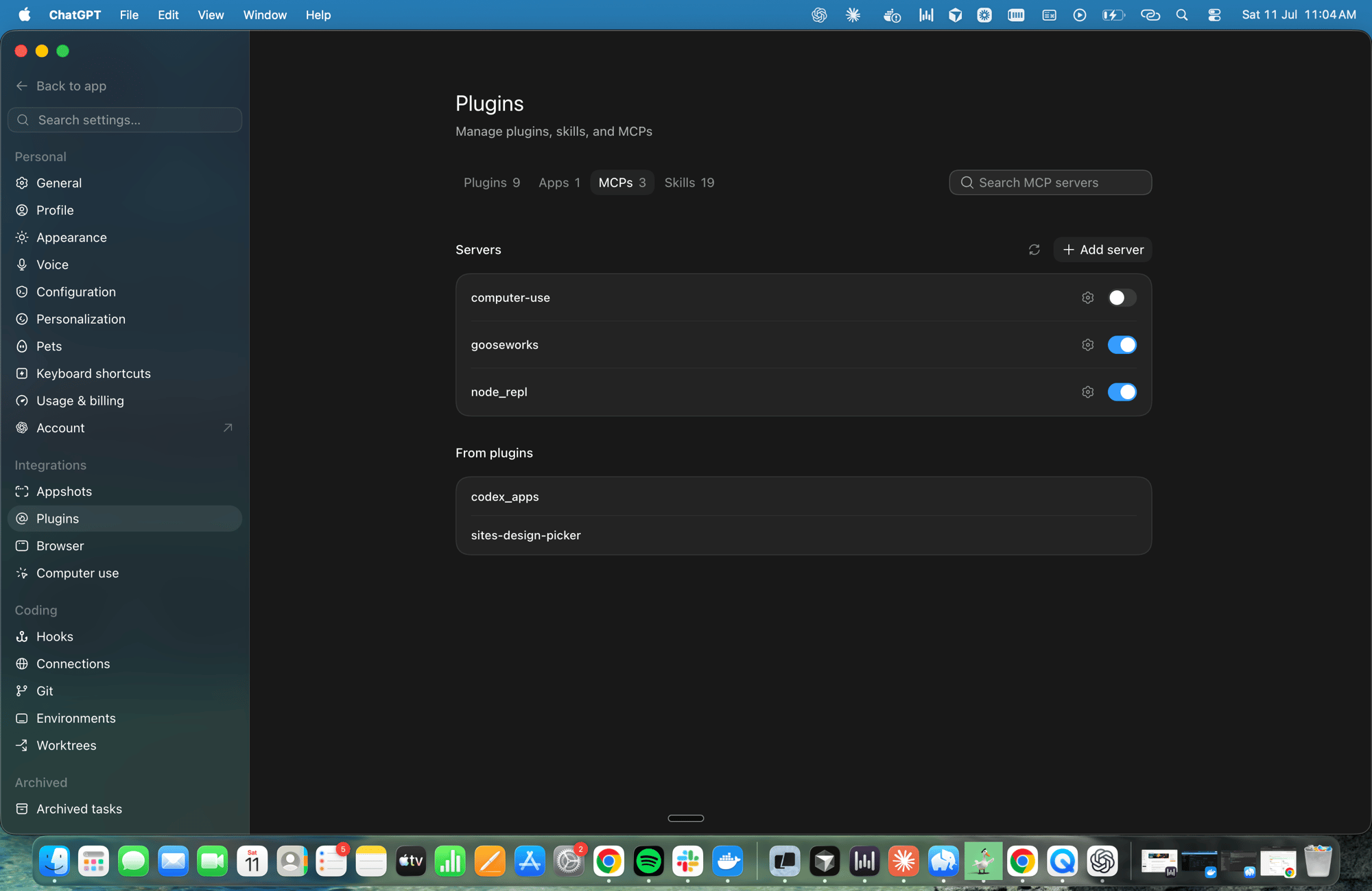
gooseworks appears in the Servers list with its toggle switched on. The GooseWorks tools are now available in your ChatGPT chats.Recommended first prompt
Open a new chat with GooseWorks enabled and send:What you can do
Once connected, ChatGPT can, on your behalf and in your account:- Make, edit & analyze ads — research a brand, remix templates into branded creatives, re-roll and edit them, and diagnose campaign performance. Generation runs through the same cloud workflow as the web app — billed to your credits.
- Work with your files, chat history & automations — the standard MCP Servers tools.
- Discover & load skills — ask ChatGPT to find and use any GooseWorks skill.
Static image ads work here; video ads don’t. Static ads are generated server-side, so they work over this connector. Video ads are made on your own computer by a coding agent (Claude Code, Codex or Cursor) connected to GooseWorks, so ChatGPT can’t make them right now. ChatGPT can still show you the video formats. To make one, see Video ads.
Managing the connection
- Access — the token is scoped to your account. It can use the GooseWorks tools and spend ad credits; it cannot change your account settings.
- Approvals — ChatGPT asks you to confirm write actions (anything that creates or changes data) before it runs them. Read-only tools run without a prompt.
- Disconnect — toggle the server off, or remove it, on the MCPs tab at any time. To rotate the token, create a new MCP token in GooseWorks, update the
Authorizationheader value in ChatGPT work, then revoke the old token.
Troubleshooting
- Server won’t enable / “couldn’t connect” — double-check the URL is
https://mcp.gooseworks.ai/mcpand that the Headers section includesAuthorizationwith a value likeBearer cal_.... Retry once; the first request can occasionally time out. - Unauthorized / missing Bearer token — make sure you didn’t paste the token into Bearer token env var. That field expects an environment variable name, not the token value.
- Some workspaces or ad projects are missing — create the token from Settings → CLI & MCP → Manual setup; tokens created there are user-scoped. User-scoped tokens let the MCP resolve the right workspace or organization per request.
- No MCPs tab or “Add server” button — make sure you’re on the latest ChatGPT version; the Plugins → MCPs panel is where custom MCP servers are added.
- Only some tools show up — ChatGPT limits how many tools a connector exposes at once. The core Ad Remixer and skill tools are prioritized; ask ChatGPT to “list gooseworks tools” to see what’s available.
Other clients
- Claude Code, Cursor, Codex — also a token header; paste the install prompt into your agent, or see MCP Servers.
- Claude (claude.ai and Cowork) — connects by signing in (OAuth) instead of a token; see Claude.