

chatgpt.com) so ChatGPT can use your GooseWorks tools — files, chat history, automations, and the full Ad Remixer — directly in your chats, in your own account and billed to your own credits.
This is the same
gooseworks MCP server documented in MCP
Servers and Ad Remixer MCP. On the
web, ChatGPT connects over OAuth — you sign in with GooseWorks instead of
pasting a token. (In clients that offer a token field — Claude Code, Cursor,
Codex — you paste a Bearer token instead; see ChatGPT
work and MCP Servers.)Before you start
- Custom MCP connectors on the web require Developer mode, available on Plus, Pro, Business, Enterprise, and Edu plans. It’s a web-only feature — not the ChatGPT mobile or desktop apps.
- Developer mode lets you add unverified connectors and carries an elevated-risk warning from OpenAI. See OpenAI’s Developer mode & MCP apps guide and the Developer mode reference before enabling it.
Connect
1
Enable Developer mode
In ChatGPT, open Settings → Security and login, scroll to Developer mode, and turn it on. It’s flagged Elevated risk because it lets you add connectors OpenAI hasn’t reviewed — only add servers you trust (like GooseWorks).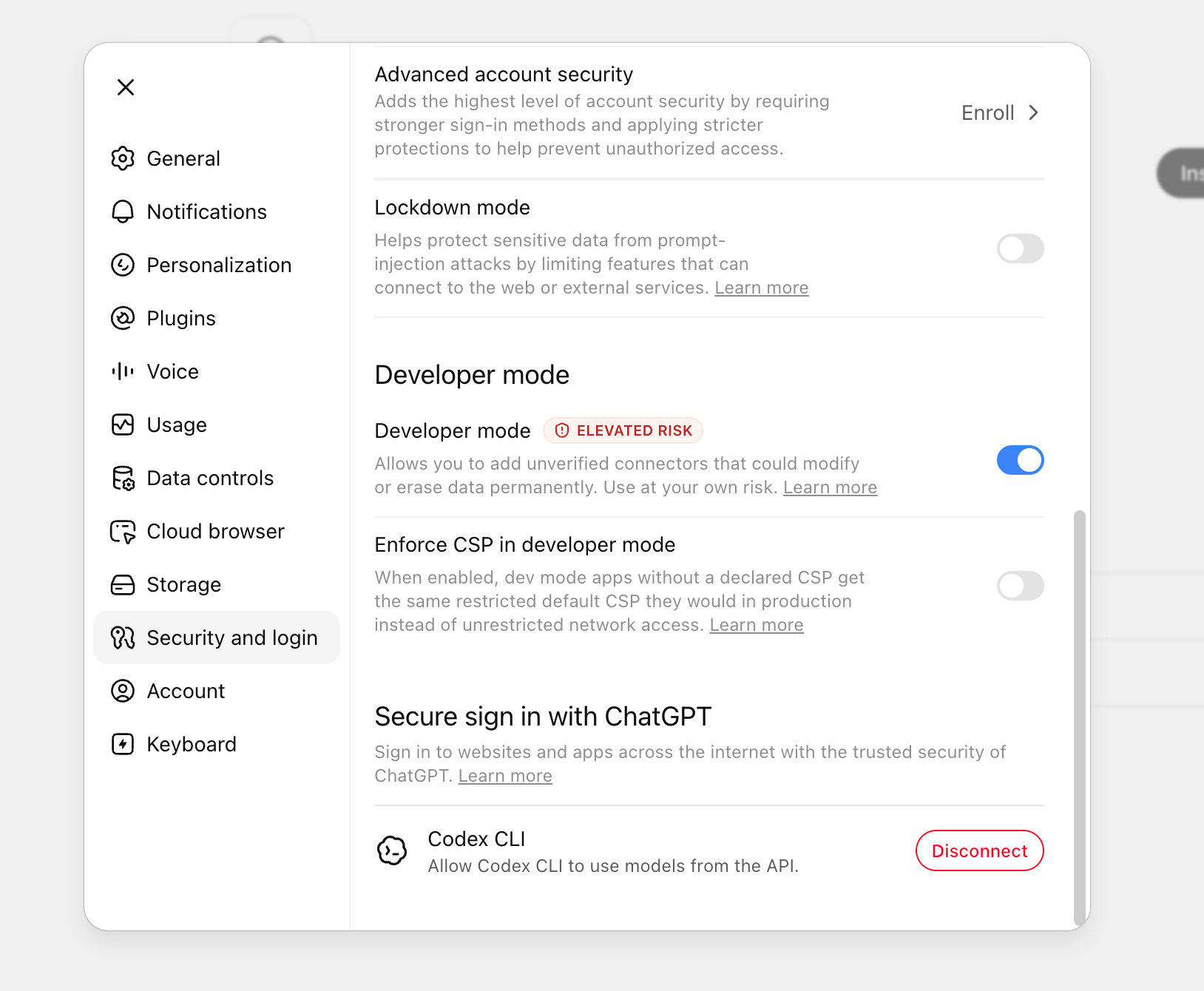
2
Open Plugins and add a connector
Go to Plugins (or visit 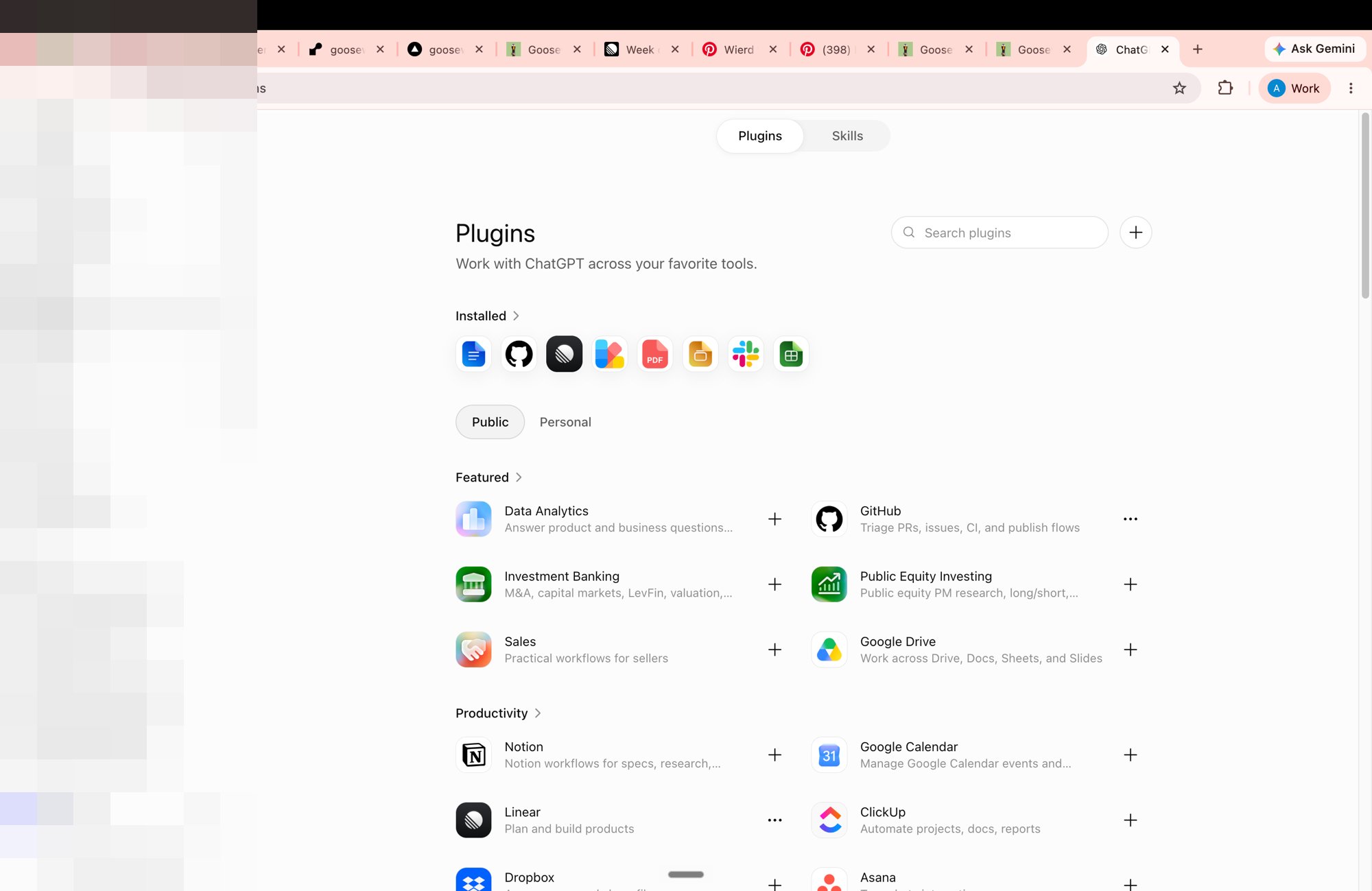
chatgpt.com/plugins) and click the + button in the top right.3
Enter the GooseWorks MCP details
In the New Plugin dialog: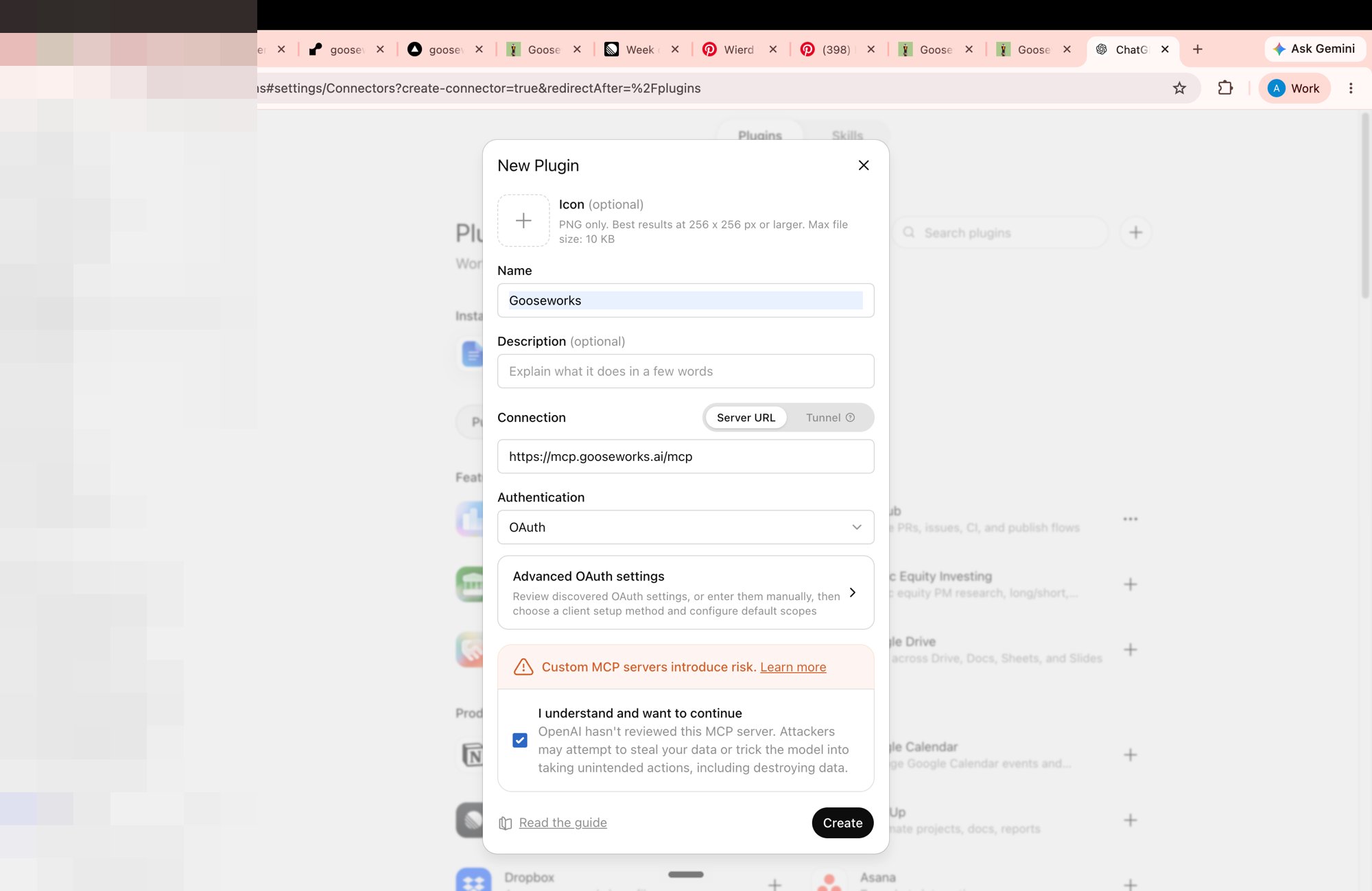
- Name:
Gooseworks - Connection: Server URL
- URL:
- Authentication: OAuth
4
Sign in with GooseWorks
Click Sign in with Gooseworks to start the OAuth flow.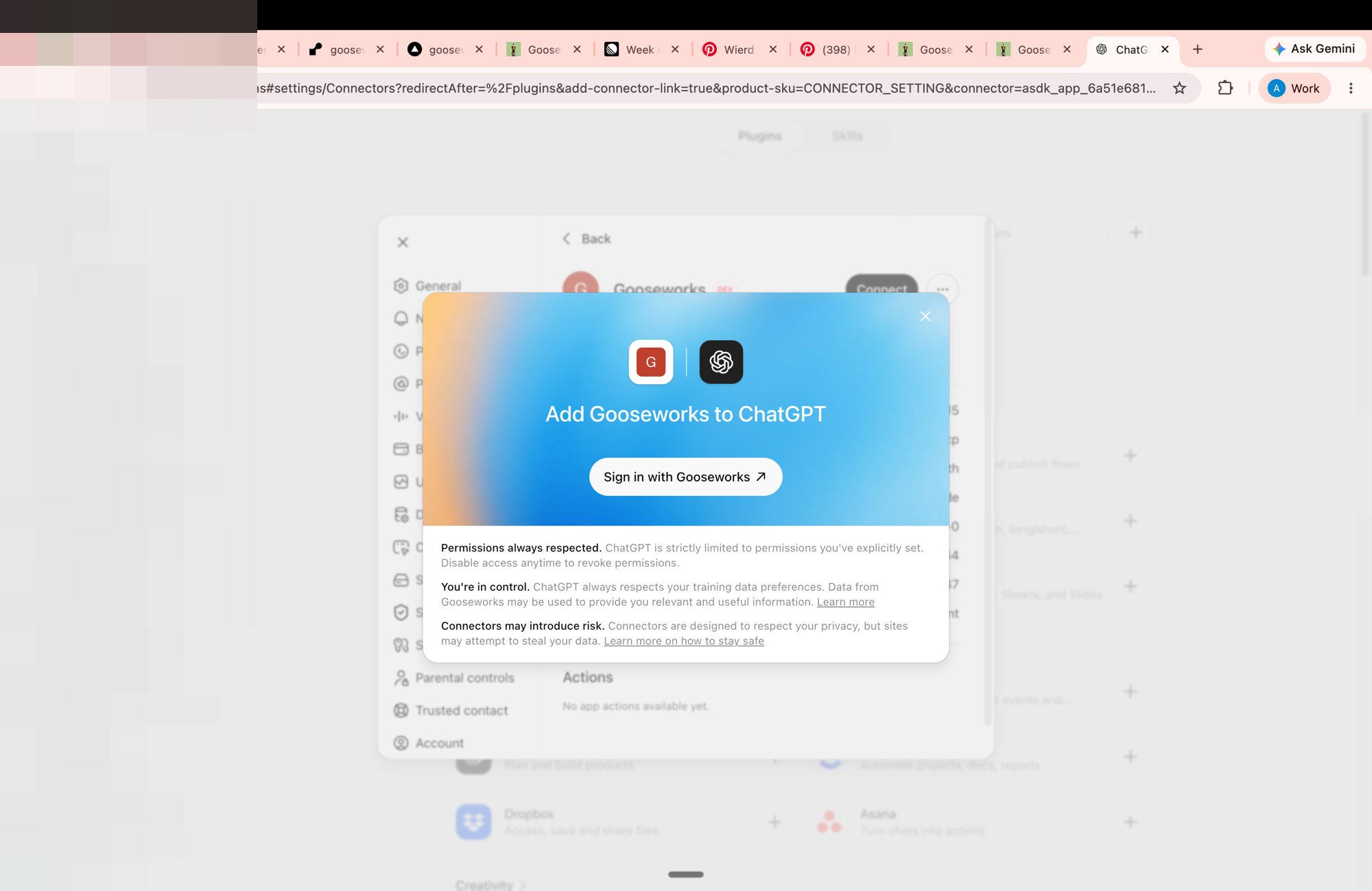
5
Approve access
You’re taken to GooseWorks and signed in with your account. Review the access request (create/edit/analyze ads, use your workspaces, spend ad credits — scope 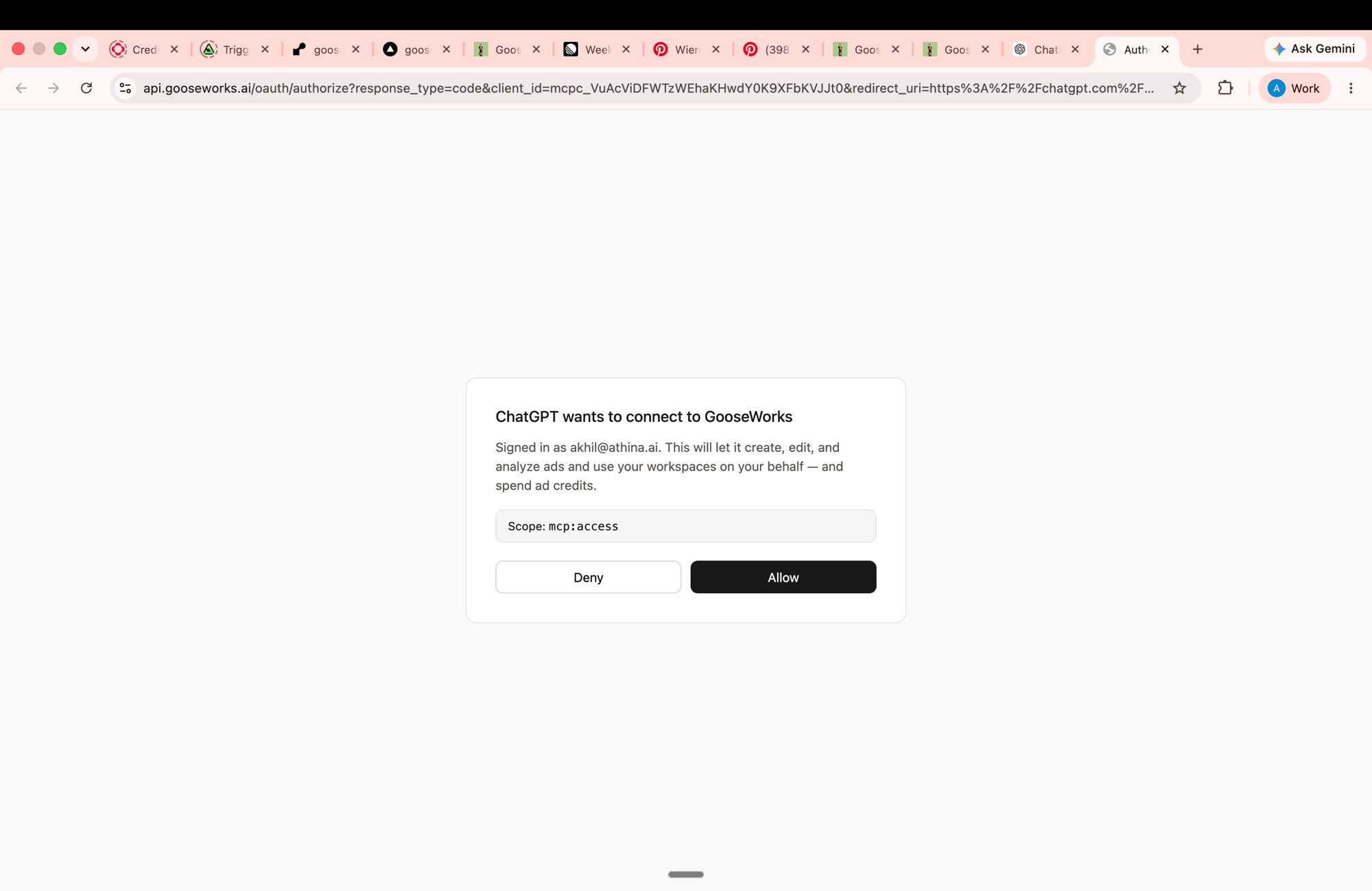
mcp:access) and click Allow.6
Confirm it's connected
Back in ChatGPT, GooseWorks shows as Connected under Plugins, with Authorization used: OAuth. The GooseWorks tools are now available in your chats.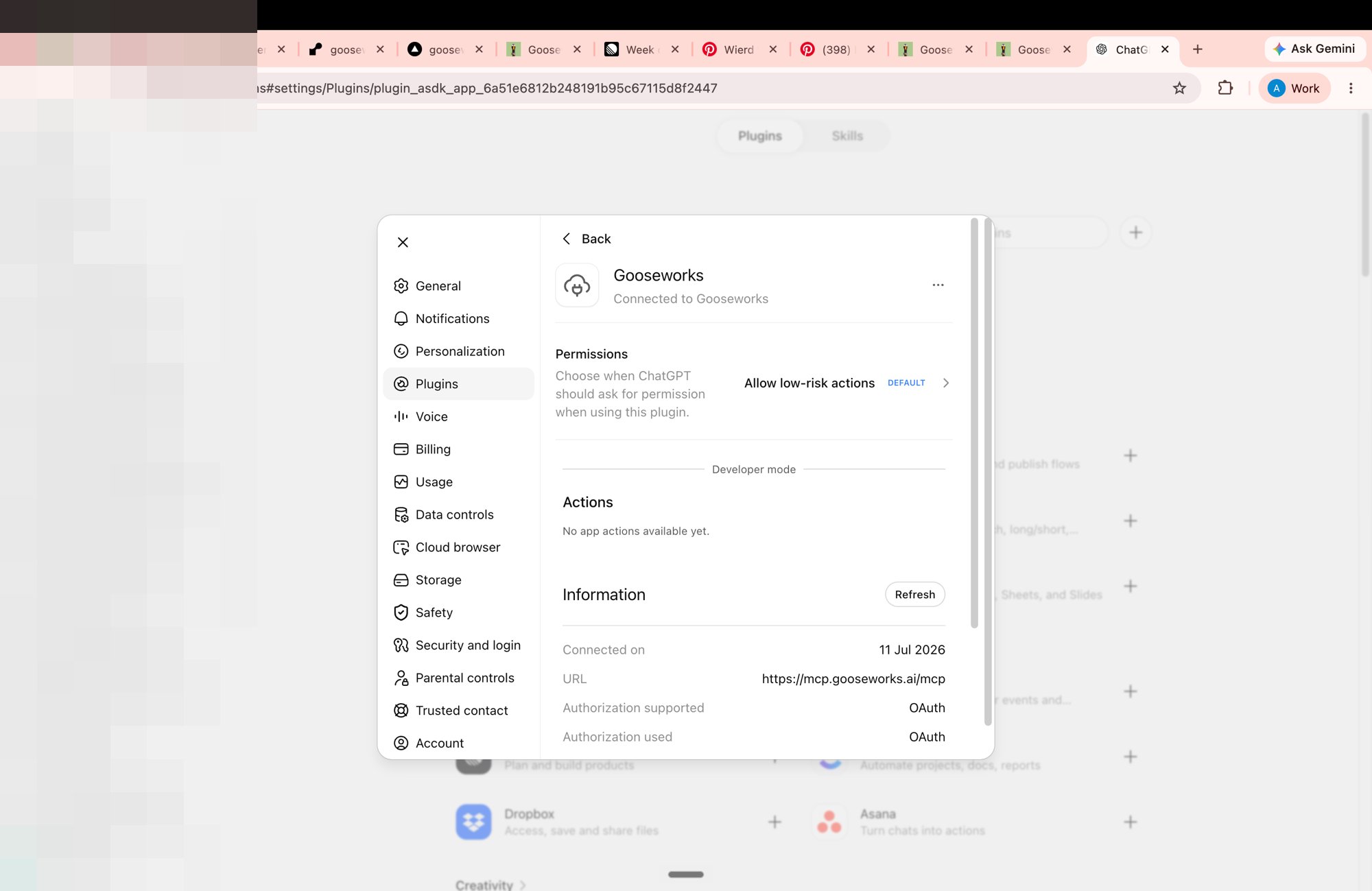
Recommended first prompt
After connecting, start a chat with this prompt:What you can do
Once connected, ChatGPT can, on your behalf and in your account:- Make, edit & analyze ads — research a brand, remix templates into branded creatives, re-roll and edit them, and diagnose campaign performance. Generation runs through the same cloud workflow as the web app — billed to your credits.
- Work with your files, chat history & automations — the standard MCP Servers tools.
- Discover & load skills — ask ChatGPT to find and use any GooseWorks skill.
Managing the connection
- Permissions — set when ChatGPT asks before running an action under Plugins → Gooseworks → Permissions (default: “Allow low-risk actions”). Write actions ask for confirmation.
- Access — the connector is granted
mcp:accessfor your account. It can use the GooseWorks tools and spend ad credits; it cannot change your account settings. - Refresh tools — after we ship new tools, open Plugins → Gooseworks → Refresh to pull the latest tool list and instructions.
- Disconnect — remove the connector under Plugins → Gooseworks at any time.
Troubleshooting
- No “Developer mode” under Security and login — you’re on a plan that doesn’t include it, or (on Team/Business/Enterprise) an admin hasn’t allowed it. Developer mode is web-only.
- “Couldn’t connect” on the first try — retry. The first request can occasionally time out; a second attempt connects.
- Sign-in loops or “access denied” — make sure you’re signing in with the account tied to your GooseWorks workspace, and that pop-ups aren’t blocked.
Other clients
- ChatGPT work, Claude Code, Cursor, Codex — paste a
Bearertoken instead of OAuth; see ChatGPT work and MCP Servers. - Claude (claude.ai and Cowork) — also sign-in (OAuth); see Claude.