> ## Documentation Index
> Fetch the complete documentation index at: https://docs.gooseworks.ai/llms.txt
> Use this file to discover all available pages before exploring further.
# Claude
> Connect GooseWorks to Claude (claude.ai and Cowork) as a custom connector
Connect GooseWorks to **Claude** so it can use your GooseWorks tools — files, chat history, automations, and the full [Ad Remixer](/ad-remixer/mcp) — right inside your chats, in your own account and billed to your own credits.
You set this up **once**. After you connect, GooseWorks is available in your normal **Claude chats** *and* in **Cowork** sessions — same account, same tools. You sign in with GooseWorks instead of copying a token.
## Connect
In your browser, go to **[claude.ai/new#settings/customize-connectors](https://claude.ai/new#settings/customize-connectors)** — this opens Claude's connector settings directly. (You can also get there by clicking your name → **Settings → Connectors**.) Then click **Add custom connector** near the top.
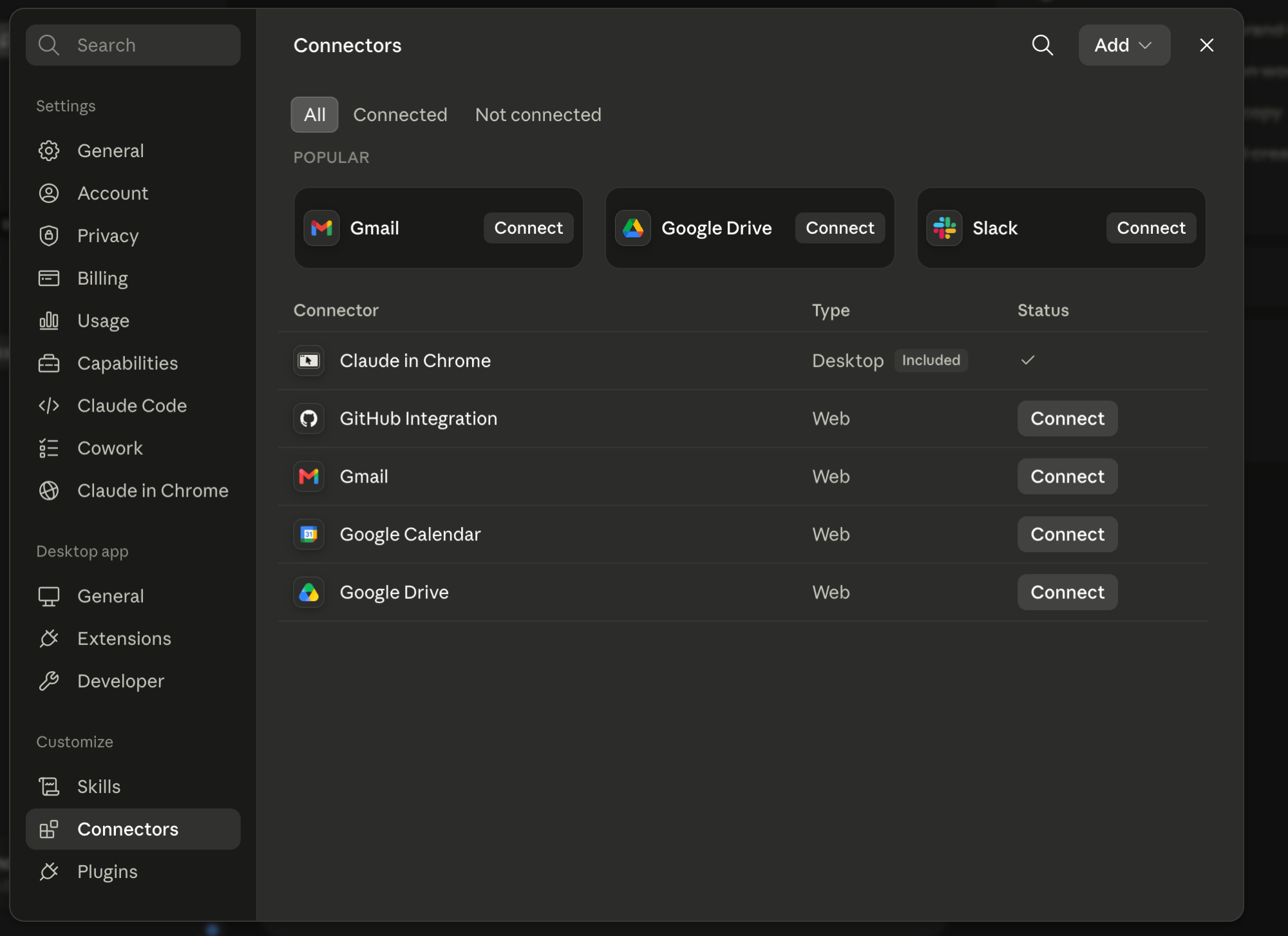 Give it the name `Gooseworks` and paste this web address:
```
https://mcp.gooseworks.ai/mcp
```
Leave the other boxes empty and click **Add**.
Give it the name `Gooseworks` and paste this web address:
```
https://mcp.gooseworks.ai/mcp
```
Leave the other boxes empty and click **Add**.
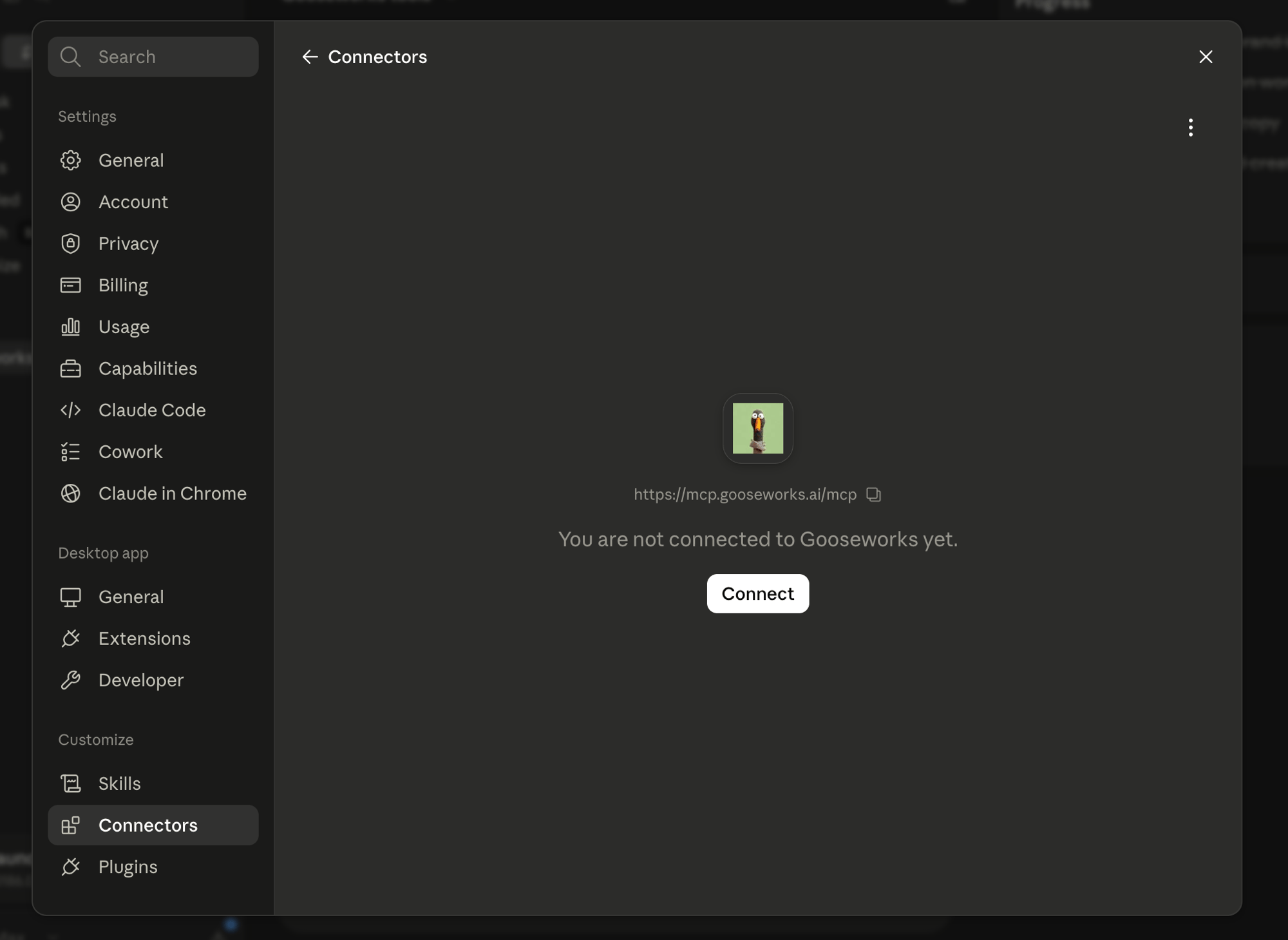
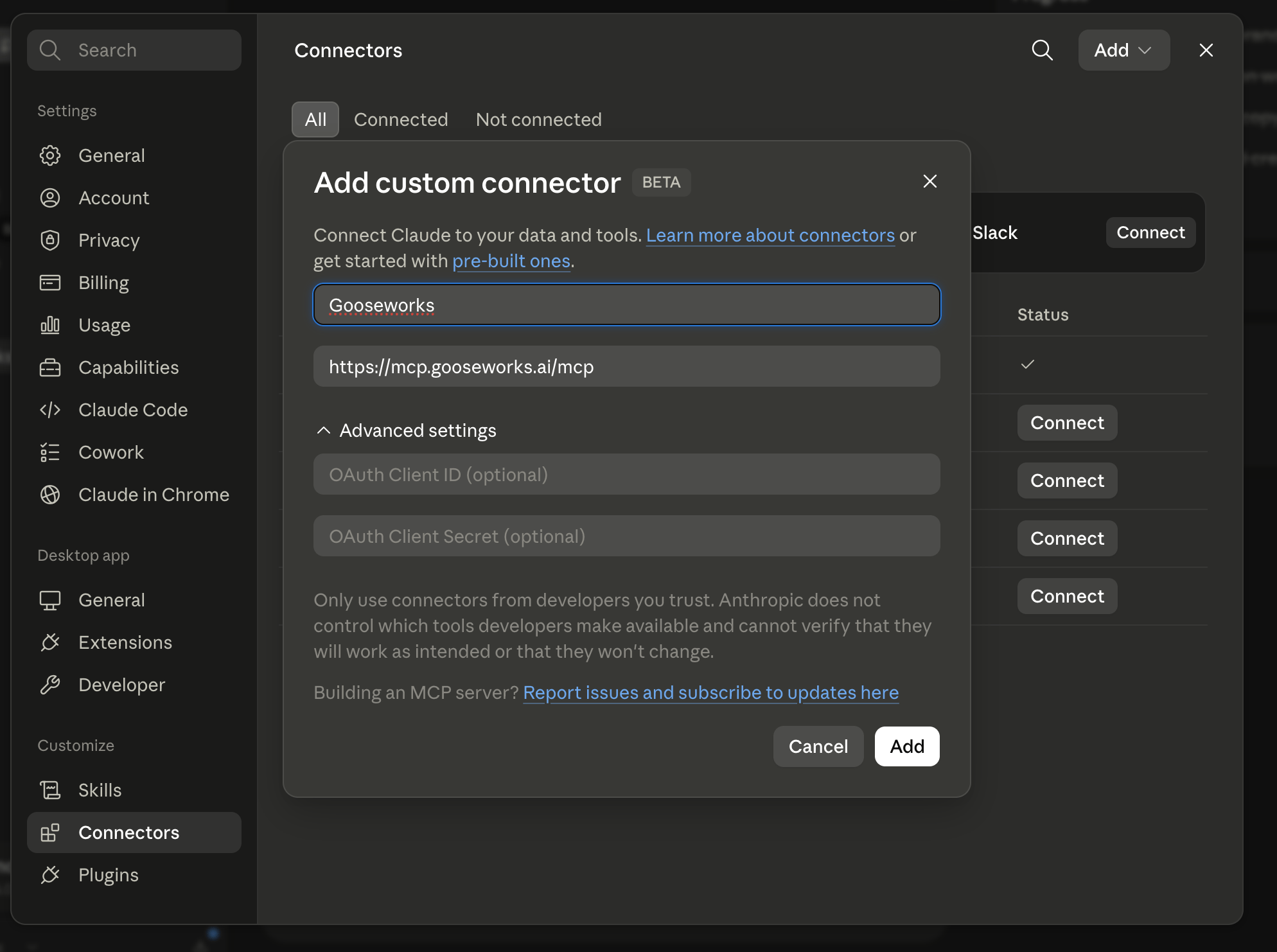 Click **Connect**. Claude sends you to GooseWorks to sign in with Google — use the **same account** you use to log in to GooseWorks.
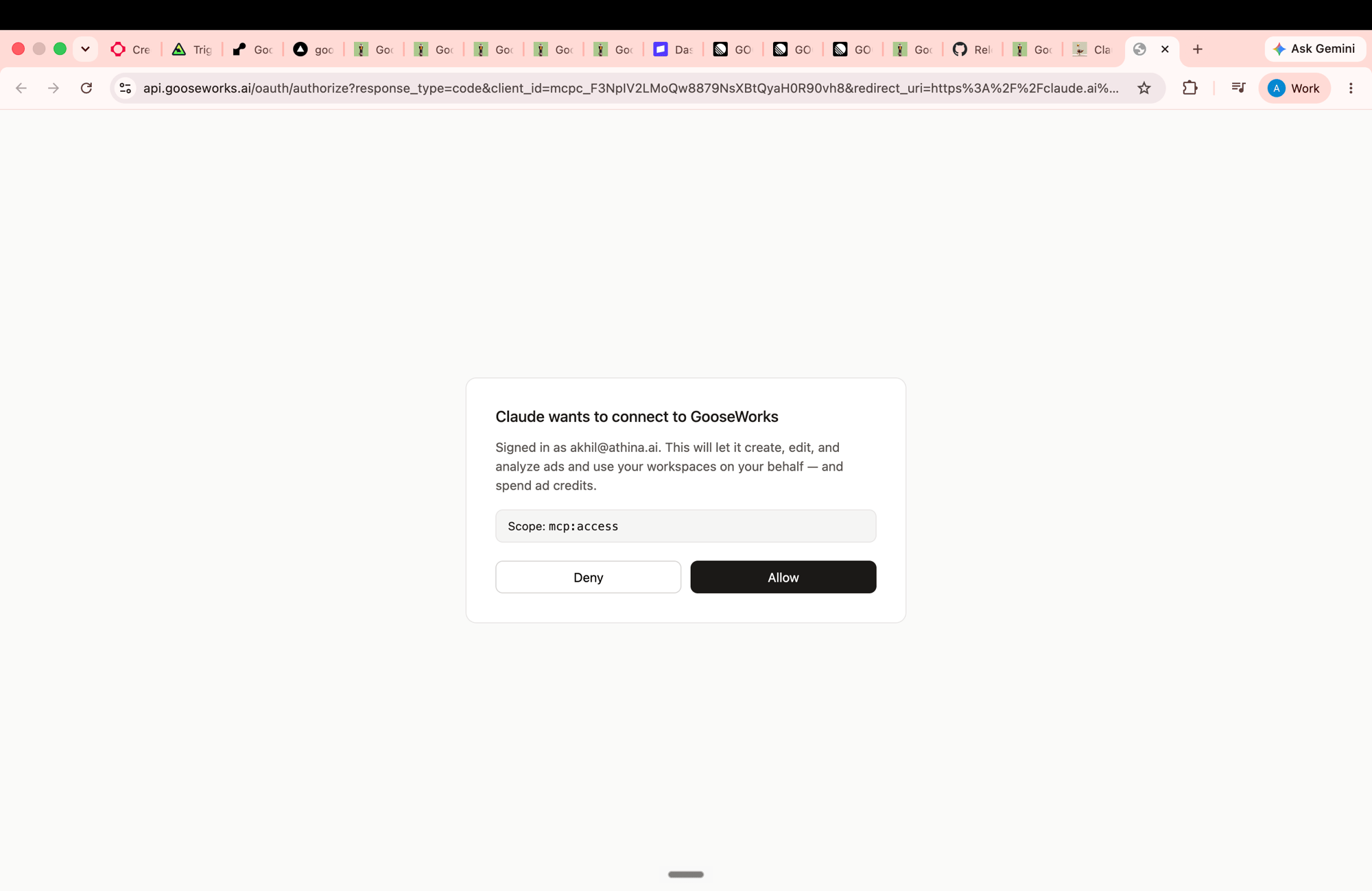
 You'll see what GooseWorks will be allowed to do (make, edit, and analyze ads, use your workspaces, and spend ad credits). Click **Allow**.
 You'll see a **Connected** message. Click **Open Claude** to return to the app.
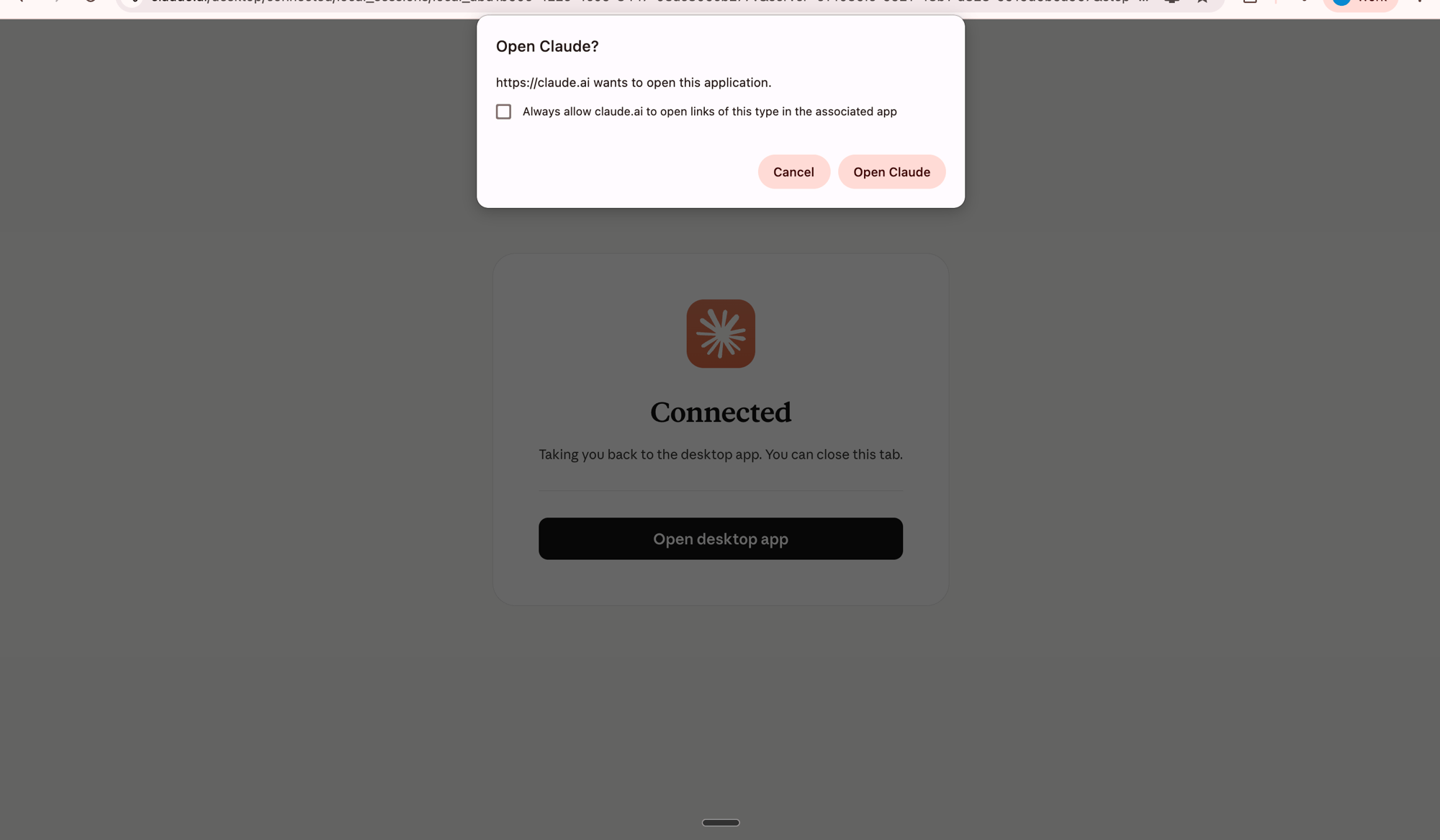 Be sure to click **Open Claude** — it takes you back so the connection finishes. When you reopen **Settings → Connectors**, GooseWorks will show as connected.
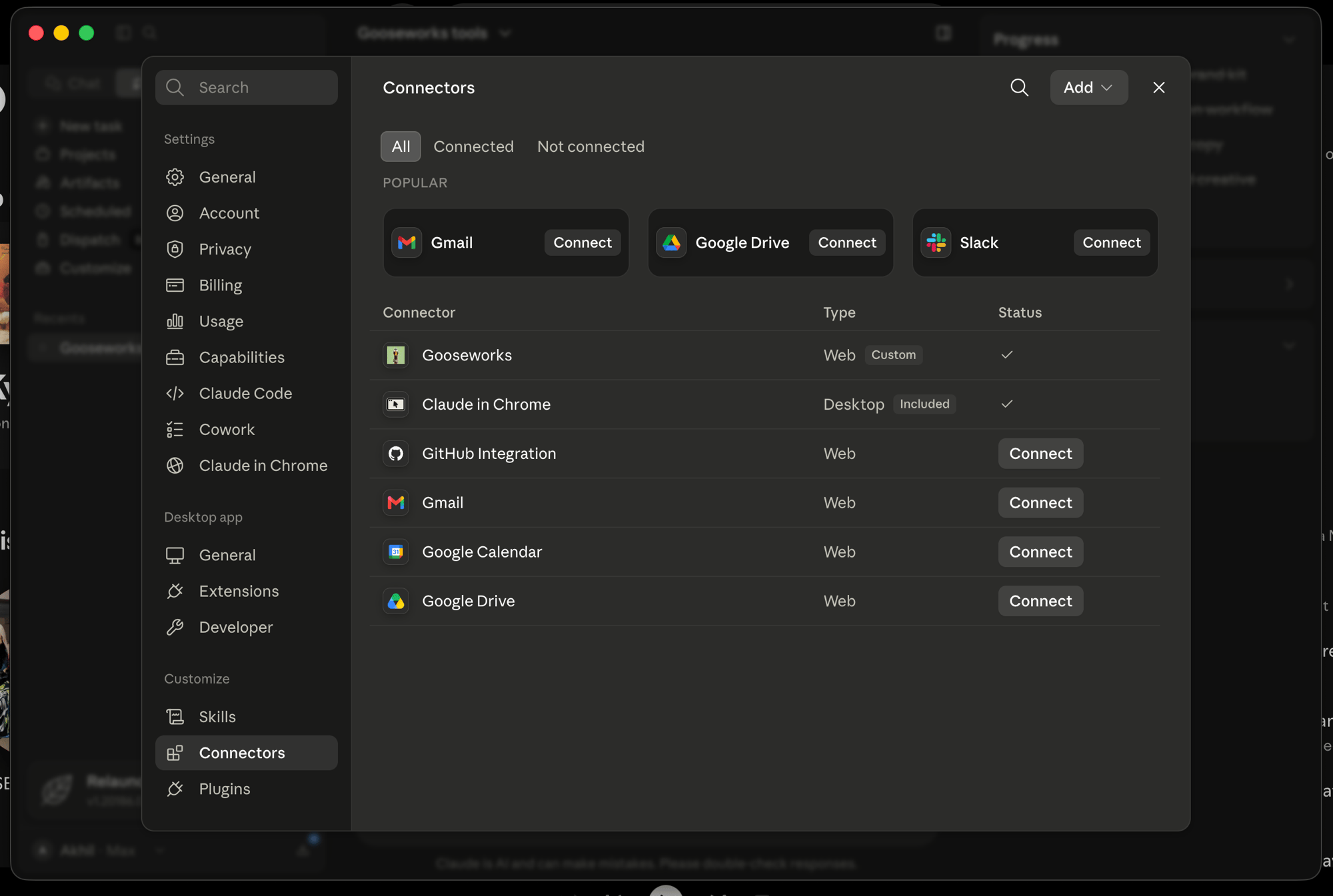
Back in **Settings → Connectors**, GooseWorks appears in the list with a checkmark. That's it — no token to copy. Just ask Claude to use GooseWorks in any chat or Cowork session.
Be sure to click **Open Claude** — it takes you back so the connection finishes. When you reopen **Settings → Connectors**, GooseWorks will show as connected.
Back in **Settings → Connectors**, GooseWorks appears in the list with a checkmark. That's it — no token to copy. Just ask Claude to use GooseWorks in any chat or Cowork session.
 ## What you can do
Once connected, Claude can, on your behalf and in your account:
* **Make, edit & analyze ads** — research a brand, turn templates into branded ads, re-roll and edit them, and check how campaigns are doing. It runs through the same system as the [web app](/ad-remixer/overview) — billed to your credits.
* **Work with your files, chat history & automations** — the standard [MCP Servers](/concepts/mcp-servers) tools.
* **Find & use skills** — just ask Claude to find and run any GooseWorks skill.
## Managing the connection
* **Where it works** — the connector works in both normal Claude chats and Cowork sessions once added.
* **What it can do** — it can use the GooseWorks tools and spend ad credits; it can't change your account settings.
* **Reconnecting** — signing in again replaces the old connection, so you never build up stale access.
* **Remove it** — delete the connector under **Settings → Connectors** any time.
## Troubleshooting
* **"Couldn't connect" the first time** — just try again. The first request sometimes times out; a second try works.
* **Stuck on sign-in or "access denied"** — make sure you're signing in with the Google account tied to your GooseWorks login, and that pop-ups aren't blocked.
## Using Claude Code, Cursor, or Codex instead?
Those are for developers and use a copied token rather than sign-in — run `npx gooseworks install` or see [MCP Servers](/concepts/mcp-servers). It's the same server and the same account either way.
## What you can do
Once connected, Claude can, on your behalf and in your account:
* **Make, edit & analyze ads** — research a brand, turn templates into branded ads, re-roll and edit them, and check how campaigns are doing. It runs through the same system as the [web app](/ad-remixer/overview) — billed to your credits.
* **Work with your files, chat history & automations** — the standard [MCP Servers](/concepts/mcp-servers) tools.
* **Find & use skills** — just ask Claude to find and run any GooseWorks skill.
## Managing the connection
* **Where it works** — the connector works in both normal Claude chats and Cowork sessions once added.
* **What it can do** — it can use the GooseWorks tools and spend ad credits; it can't change your account settings.
* **Reconnecting** — signing in again replaces the old connection, so you never build up stale access.
* **Remove it** — delete the connector under **Settings → Connectors** any time.
## Troubleshooting
* **"Couldn't connect" the first time** — just try again. The first request sometimes times out; a second try works.
* **Stuck on sign-in or "access denied"** — make sure you're signing in with the Google account tied to your GooseWorks login, and that pop-ups aren't blocked.
## Using Claude Code, Cursor, or Codex instead?
Those are for developers and use a copied token rather than sign-in — run `npx gooseworks install` or see [MCP Servers](/concepts/mcp-servers). It's the same server and the same account either way.