> ## Documentation Index
> Fetch the complete documentation index at: https://docs.gooseworks.ai/llms.txt
> Use this file to discover all available pages before exploring further.
# ChatGPT work
> Connect the ChatGPT work app to GooseWorks as a custom MCP server
Connect the **ChatGPT work app** to GooseWorks so it can use your GooseWorks tools — files, chat history, automations, and the full [Ad Remixer](/ad-remixer/mcp) — directly in your chats, in your own account and billed to your own credits.
This is the **same** `gooseworks` MCP server documented in [MCP Servers](/concepts/mcp-servers) and [Ad Remixer MCP](/ad-remixer/mcp). ChatGPT work connects with a **token header**: `Authorization: Bearer cal_...`. Same tools, same account.
## Before you start
* Custom MCP servers are added under **Settings → Plugins → MCPs**.
* You'll need a **user-scoped** GooseWorks MCP token with the `mcp:access` scope. The first step below shows exactly where to create it.
## Connect
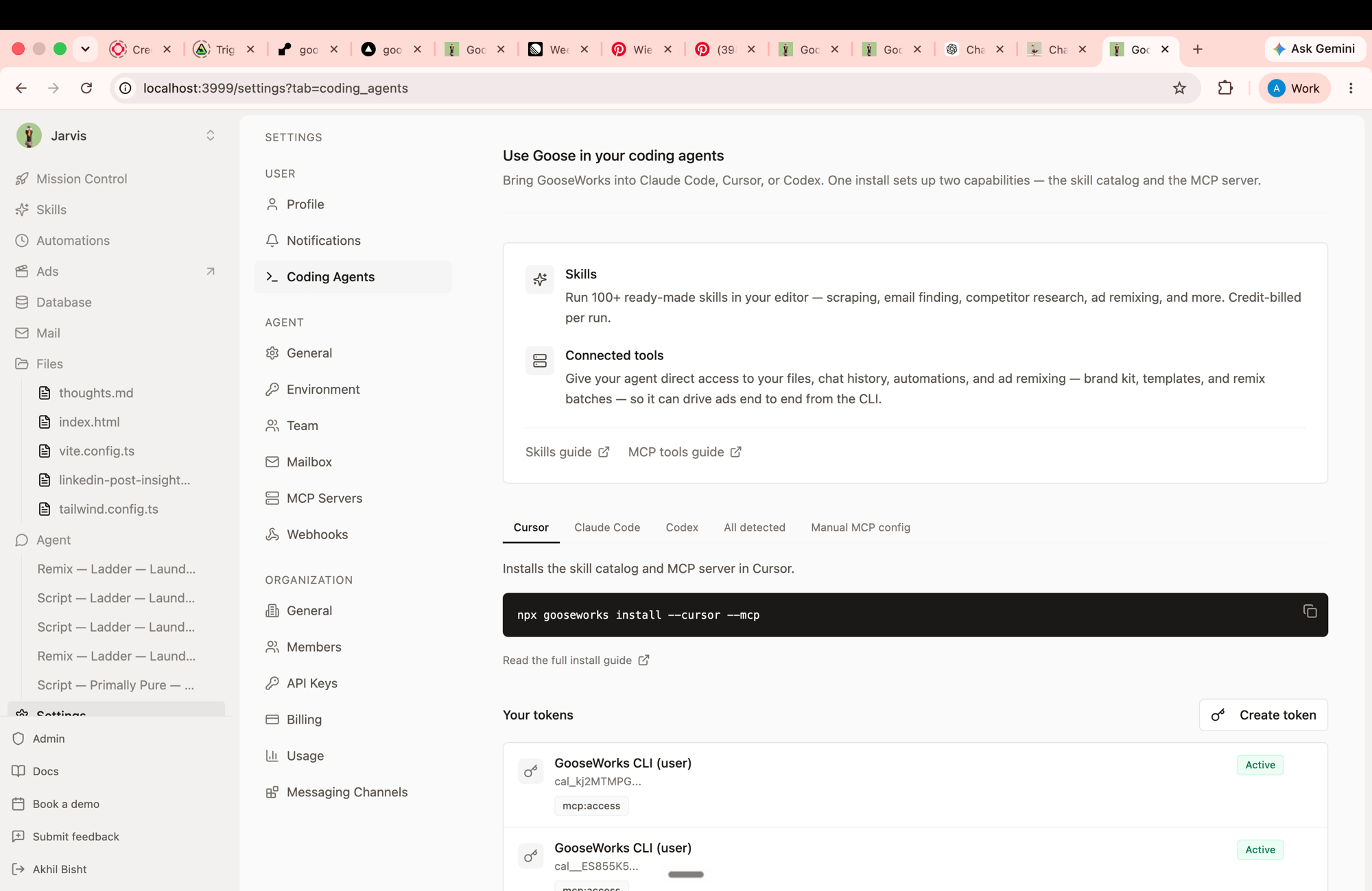
In GooseWorks, go to **Settings → Coding Agents** and click **Create token** under **Your tokens**. You can also open **Manual MCP config** and click **Create MCP Token** — both create the same user-scoped MCP token.
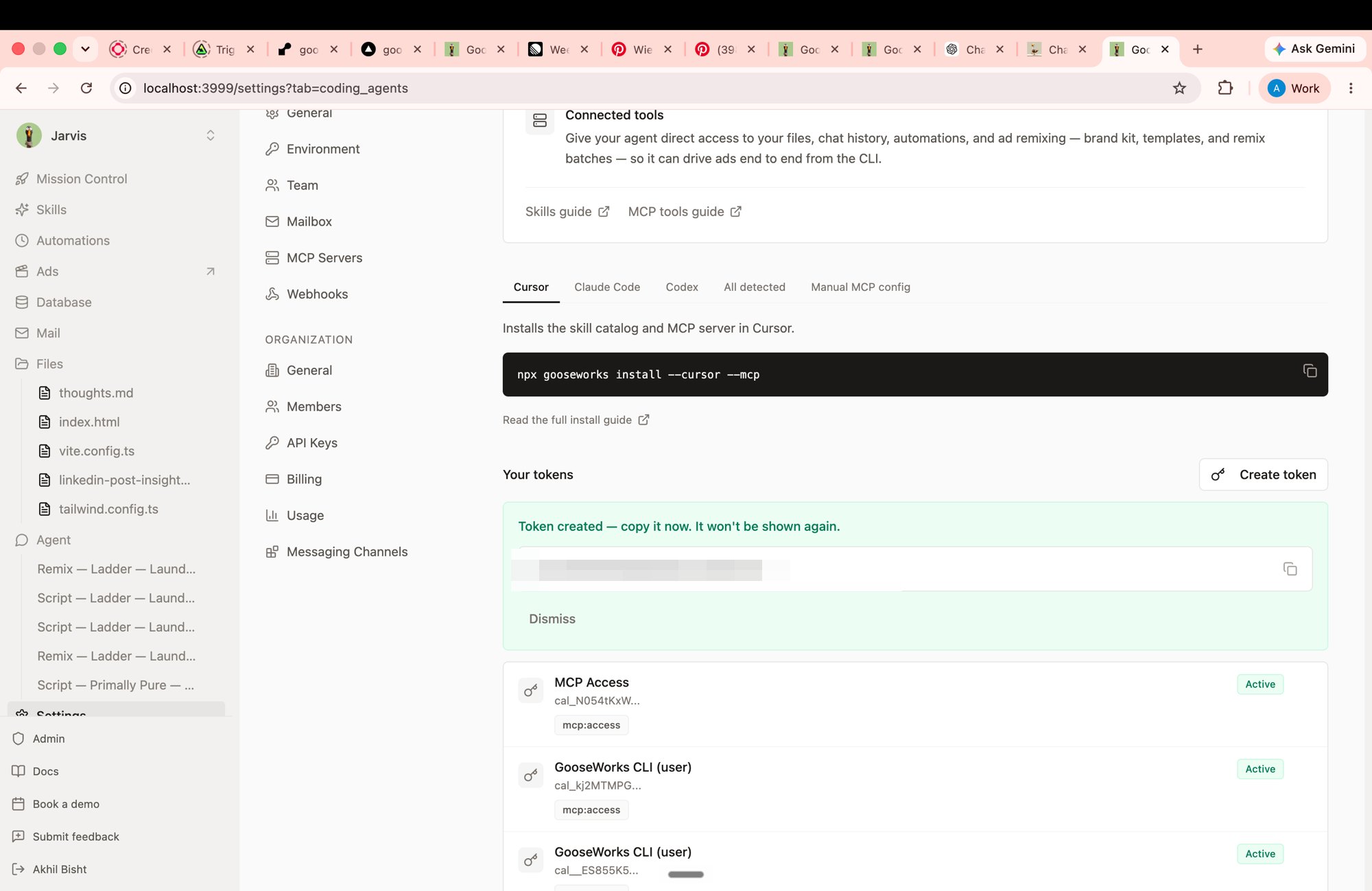
 The new token is shown **once** — copy the `cal_…` value now (it won't be shown again). You'll paste it into ChatGPT in the next step.
 In ChatGPT, open **Settings → Plugins**, select the **MCPs** tab, and click **+ Add server**. Fill in the **Connect to a custom MCP** form:
* **Name:** `Gooseworks`
* **Type:** **Streamable HTTP**
* **URL:**
```
https://mcp.gooseworks.ai/mcp
```
Leave **Bearer token env var** empty.
Under **Headers**, add:
* **Key:** `Authorization`
* **Value:** `Bearer cal_your_token_here`
Replace `cal_your_token_here` with the token you just copied, then click **Save**.
In ChatGPT, open **Settings → Plugins**, select the **MCPs** tab, and click **+ Add server**. Fill in the **Connect to a custom MCP** form:
* **Name:** `Gooseworks`
* **Type:** **Streamable HTTP**
* **URL:**
```
https://mcp.gooseworks.ai/mcp
```
Leave **Bearer token env var** empty.
Under **Headers**, add:
* **Key:** `Authorization`
* **Value:** `Bearer cal_your_token_here`
Replace `cal_your_token_here` with the token you just copied, then click **Save**.
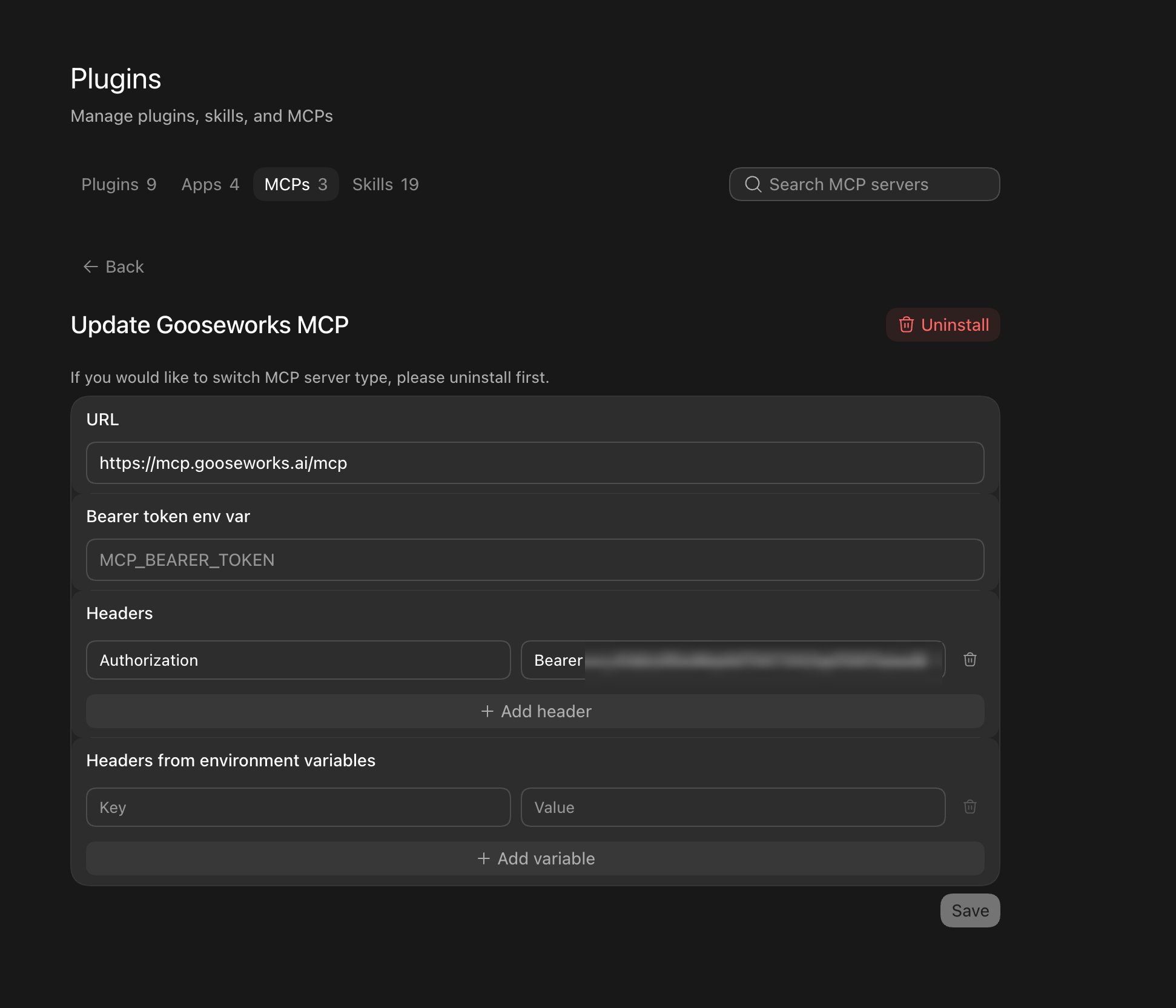 The **Bearer token env var** field is only for the name of an environment variable, such as `GOOSEWORKS_MCP_TOKEN`. Don't paste `Bearer cal_...` into that field. If you prefer the environment-variable path, set the environment variable to the raw `cal_...` token and enter only the variable name in the field.
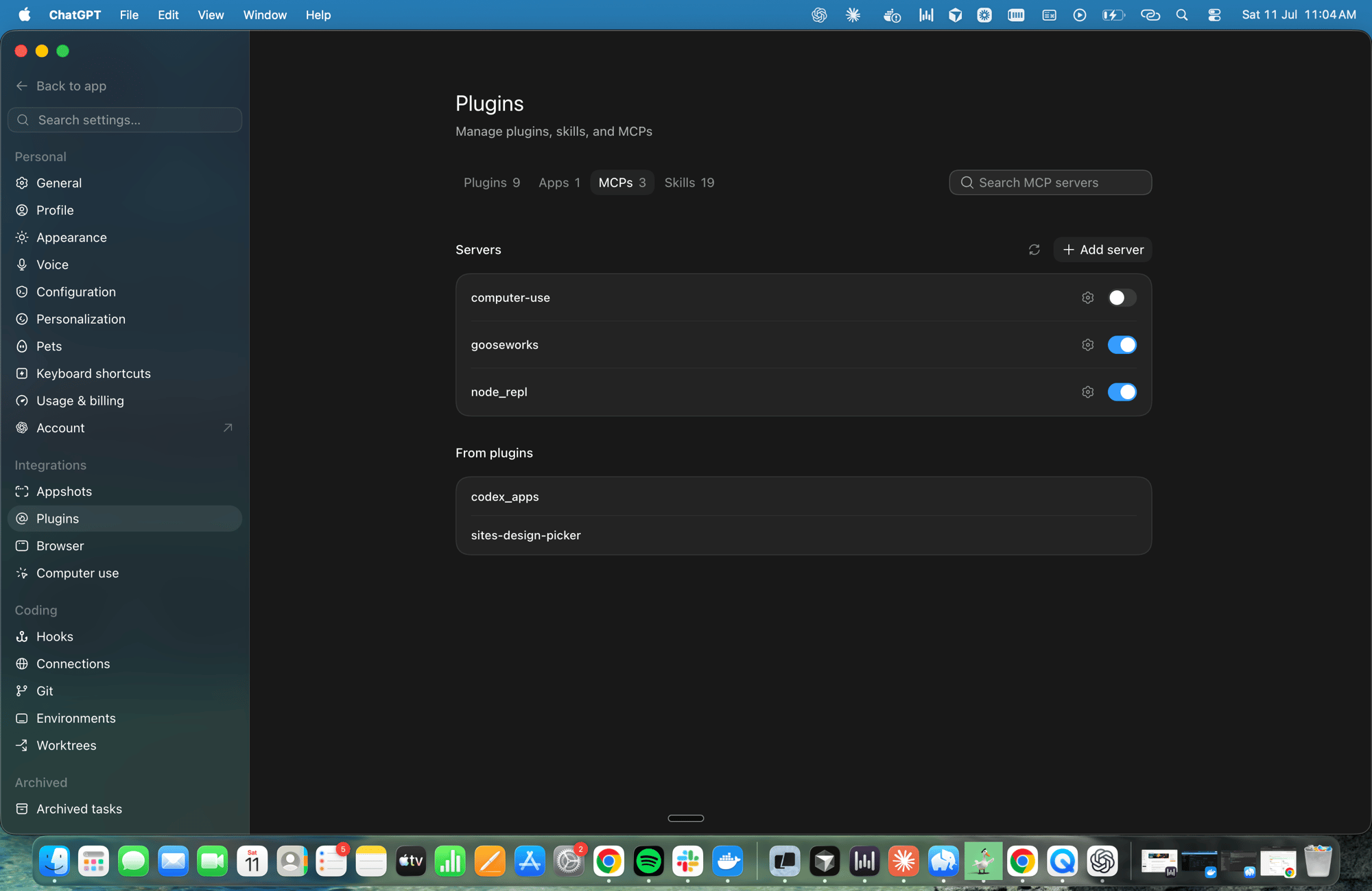
Back on the **MCPs** tab, `gooseworks` appears in the **Servers** list with its toggle switched **on**. The GooseWorks tools are now available in your ChatGPT chats.
The **Bearer token env var** field is only for the name of an environment variable, such as `GOOSEWORKS_MCP_TOKEN`. Don't paste `Bearer cal_...` into that field. If you prefer the environment-variable path, set the environment variable to the raw `cal_...` token and enter only the variable name in the field.
Back on the **MCPs** tab, `gooseworks` appears in the **Servers** list with its toggle switched **on**. The GooseWorks tools are now available in your ChatGPT chats.
 ## What you can do
Once connected, ChatGPT can, on your behalf and in your account:
* **Make, edit & analyze ads** — research a brand, remix templates into branded creatives, re-roll and edit them, and diagnose campaign performance. Generation runs through the same cloud workflow as the [web app](/ad-remixer/overview) — billed to your credits.
* **Work with your files, chat history & automations** — the standard [MCP Servers](/concepts/mcp-servers) tools.
* **Discover & load skills** — ask ChatGPT to find and use any GooseWorks skill.
**Static image ads work here; video ads render locally.** Static ads are generated server-side, so they work over this connector. **Video** ad rendering runs on the machine executing the agent (it needs network egress + a local `ffmpeg` toolchain), so it works only in **local Claude Code or the GooseWorks desktop app** — not inside the ChatGPT work sandbox, which blocks the required network access. From here you can still set up a video project (brand, template, script); ask GooseWorks for a **static** ad to finish in-app, or render the video locally.
## Managing the connection
* **Access** — the token is scoped to your account. It can use the GooseWorks tools and spend ad credits; it cannot change your account settings.
* **Approvals** — ChatGPT asks you to confirm write actions (anything that creates or changes data) before it runs them. Read-only tools run without a prompt.
* **Disconnect** — toggle the server off, or remove it, on the **MCPs** tab at any time. To rotate the token, create a new MCP token in GooseWorks, update the `Authorization` header value in ChatGPT work, then revoke the old token.
## Troubleshooting
* **Server won't enable / "couldn't connect"** — double-check the URL is `https://mcp.gooseworks.ai/mcp` and that the **Headers** section includes `Authorization` with a value like `Bearer cal_...`. Retry once; the first request can occasionally time out.
* **Unauthorized / missing Bearer token** — make sure you didn't paste the token into **Bearer token env var**. That field expects an environment variable name, not the token value.
* **Some workspaces or ad projects are missing** — create the token from **Manual MCP config** so it is user-scoped. User-scoped tokens let the MCP resolve the right workspace or organization per request.
* **No MCPs tab or "Add server" button** — make sure you're on the latest ChatGPT version; the **Plugins → MCPs** panel is where custom MCP servers are added.
* **Only some tools show up** — ChatGPT limits how many tools a connector exposes at once. The core Ad Remixer and skill tools are prioritized; ask ChatGPT to "list gooseworks tools" to see what's available.
## Other clients
* **Claude Code, Cursor, Codex** — also a token header; run `npx gooseworks install` or see [MCP Servers](/concepts/mcp-servers).
* **Claude** (claude.ai and Cowork) — connects by signing in (OAuth) instead of a token; see [Claude](/connections/claude).
It's the same server and the same account either way.
## What you can do
Once connected, ChatGPT can, on your behalf and in your account:
* **Make, edit & analyze ads** — research a brand, remix templates into branded creatives, re-roll and edit them, and diagnose campaign performance. Generation runs through the same cloud workflow as the [web app](/ad-remixer/overview) — billed to your credits.
* **Work with your files, chat history & automations** — the standard [MCP Servers](/concepts/mcp-servers) tools.
* **Discover & load skills** — ask ChatGPT to find and use any GooseWorks skill.
**Static image ads work here; video ads render locally.** Static ads are generated server-side, so they work over this connector. **Video** ad rendering runs on the machine executing the agent (it needs network egress + a local `ffmpeg` toolchain), so it works only in **local Claude Code or the GooseWorks desktop app** — not inside the ChatGPT work sandbox, which blocks the required network access. From here you can still set up a video project (brand, template, script); ask GooseWorks for a **static** ad to finish in-app, or render the video locally.
## Managing the connection
* **Access** — the token is scoped to your account. It can use the GooseWorks tools and spend ad credits; it cannot change your account settings.
* **Approvals** — ChatGPT asks you to confirm write actions (anything that creates or changes data) before it runs them. Read-only tools run without a prompt.
* **Disconnect** — toggle the server off, or remove it, on the **MCPs** tab at any time. To rotate the token, create a new MCP token in GooseWorks, update the `Authorization` header value in ChatGPT work, then revoke the old token.
## Troubleshooting
* **Server won't enable / "couldn't connect"** — double-check the URL is `https://mcp.gooseworks.ai/mcp` and that the **Headers** section includes `Authorization` with a value like `Bearer cal_...`. Retry once; the first request can occasionally time out.
* **Unauthorized / missing Bearer token** — make sure you didn't paste the token into **Bearer token env var**. That field expects an environment variable name, not the token value.
* **Some workspaces or ad projects are missing** — create the token from **Manual MCP config** so it is user-scoped. User-scoped tokens let the MCP resolve the right workspace or organization per request.
* **No MCPs tab or "Add server" button** — make sure you're on the latest ChatGPT version; the **Plugins → MCPs** panel is where custom MCP servers are added.
* **Only some tools show up** — ChatGPT limits how many tools a connector exposes at once. The core Ad Remixer and skill tools are prioritized; ask ChatGPT to "list gooseworks tools" to see what's available.
## Other clients
* **Claude Code, Cursor, Codex** — also a token header; run `npx gooseworks install` or see [MCP Servers](/concepts/mcp-servers).
* **Claude** (claude.ai and Cowork) — connects by signing in (OAuth) instead of a token; see [Claude](/connections/claude).
It's the same server and the same account either way.